Set up DroidVault on your phone
The DroidVault phone app comes from this website rather than Google Play, so Android asks you to confirm a few things along the way. This guide shows the messages you’re likely to see and what to tap.
Before you start
- DroidVault for Windows is required. It’s $19.99, a one-time purchase from the Microsoft Store. The phone app only backs up to it, so start there. It walks you through these same steps and shows the QR code you’ll scan at the end.
- This page, open on your phone. On your phone, open Chrome and go to droidvault.app/setup.html, or scan the QR code DroidVault for Windows shows on its phone-setup screen.
- Your phone and PC on the same Wi‑Fi network.
- Chrome on your phone. These steps use Chrome, the standard browser on most Android phones, and the download button in step 2 should open the file in Chrome. On a Samsung phone, Chrome is usually in the Google folder on your apps screen. If you opened this page from another app, such as the Google app, the download can get stuck there, so use Chrome.
What you’ll see
Five messages, in the order they appear. Tap one to jump to its step.
-
Samsung phones: turn off Auto Blocker
Samsung’s Auto Blocker stops apps from being installed from anywhere other than the Galaxy Store and Google Play. While it’s on, DroidVault can’t be installed, so turn it off first.
Where to find itSettings › Security and privacy › Auto Blocker
Switch Auto Blocker off.
Once DroidVault is installed, you can turn Auto Blocker back on. You’ll need to switch it off again briefly to install a DroidVault update.
Not using a Samsung phone? Go straight to step 2.
-
Download the app
On your phone, tap the button below. It should open the download in Chrome.
Download DroidVault for Android
Button not working, or no Chrome on your phone? Download the file directly in the browser you’re using. This may not finish inside the Google app; if it doesn’t, use Chrome.
Reading this on your PC? Don’t download here; the file is for your phone. Open this page on your phone instead by going to droidvault.app/setup.html in Chrome.
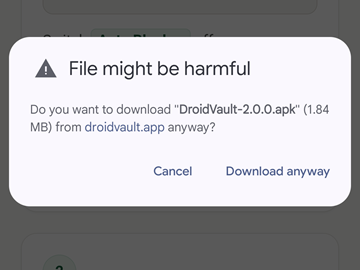
What you’ll see“File might be harmful”
“Do you want to download ‘DroidVault-2.0.0.apk’ … from droidvault.app anyway?”
Chrome warns because the file is an app that doesn’t come from an app store. Check that it names droidvault.app, then tap Download anyway. The exact words can differ a little with your phone and Chrome version. When the download finishes, Chrome shows a File downloaded bar.
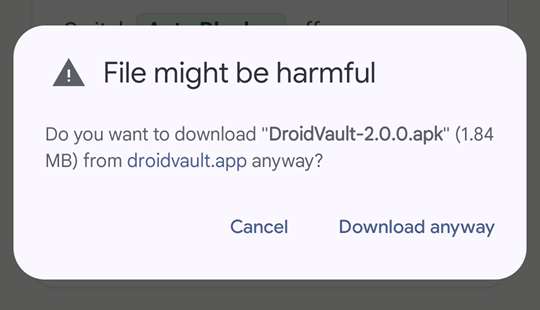
Chrome’s warning. Tap Download anyway. 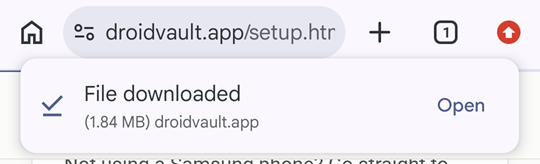
When it finishes: the File downloaded bar. Tap Open for step 3. If the download never finishes (for example it stays at 100% and keeps saying “Downloading”), this page probably opened inside another app, such as the Google app, instead of Chrome. Open Chrome, go to droidvault.app/setup.html and tap the button again.
-
Let Chrome install apps
When the download finishes, tap Open in Chrome or in the download notification. The first time you install an app this way, Android stops you and says your phone isn’t allowed to install unknown apps from this source:
What you’ll see“Permission required”
“For your security, your phone currently isn’t allowed to install unknown apps from this source. You can change this in Settings.”
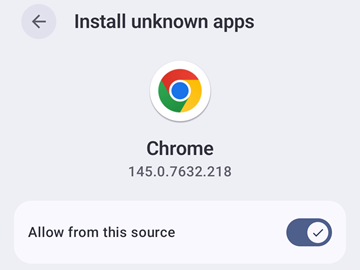
- Tap Settings. The Install unknown apps screen for Chrome opens.
- Turn on Allow from this source.
- The install prompt comes back on its own. If it doesn’t, tap the downloaded file again in Chrome’s Downloads.
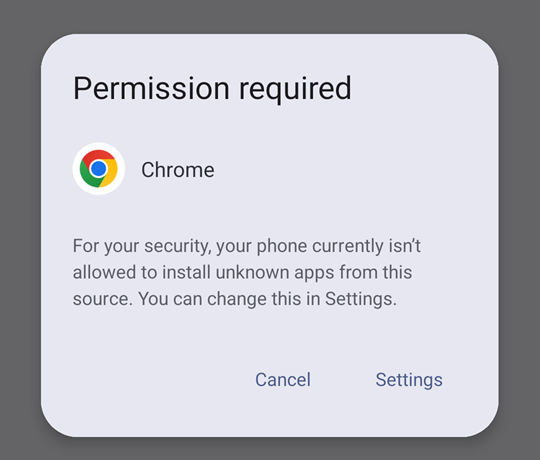
Android stops the first install. Tap Settings. 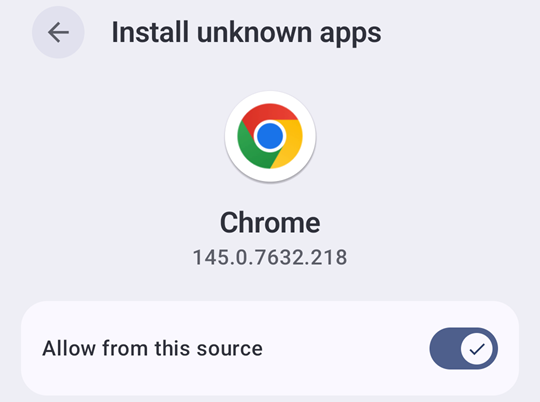
The Install unknown apps screen for Chrome, with Allow from this source switched on. This setting controls which apps may install other apps. You’re giving that permission to Chrome, not to DroidVault. You can switch it off again once DroidVault is installed; Android will simply ask again the next time. Downloaded the file in a different browser, such as Samsung Internet? Allow that browser the same way.
-
Install DroidVault
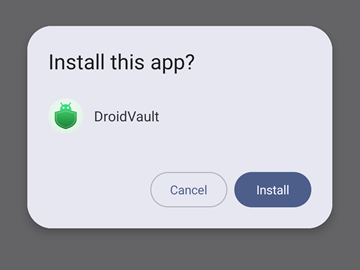
Android shows the DroidVault name and icon and asks whether you want to install it.
What you’ll see“Install this app?”
Tap Install. When it finishes, Android says App installed; tap Open.
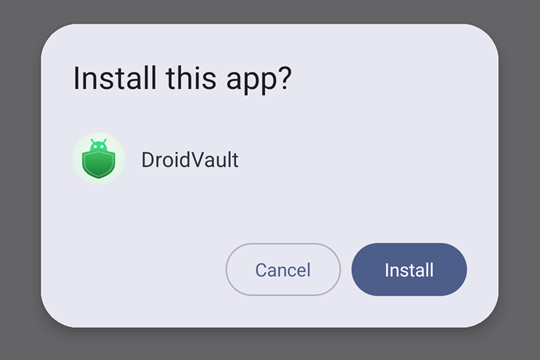
Android’s install prompt. Check that it says DroidVault, then tap Install. 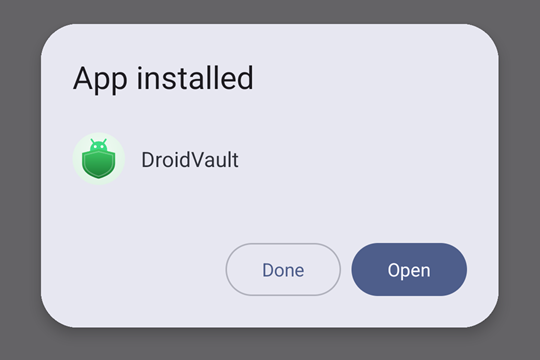
Done. Tap Open. If Google Play Protect shows a warning in between, follow step 5, then come back here and tap Open once DroidVault is installed.
-
If Google Play Protect shows a warning May appear
Google Play Protect, Android’s built-in app checker, may warn you before DroidVault installs and ask whether you trust it. It warns because DroidVault comes from droidvault.app instead of an app store, so Play Protect may not have seen it before. DroidVault is signed by Gigadyne LLC.
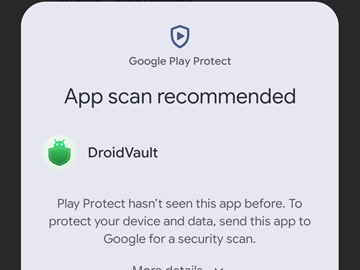
What you may see“App scan recommended”
“Play Protect hasn’t seen this app before. To protect your device and data, send this app to Google for a security scan.”
The words and buttons differ between phones; some ask whether you trust the app instead.
To go ahead, choose the option that installs the app:
- If you don’t see an install option, tap More details to show it.
- Tap the option that installs DroidVault. It may be called Install without scanning, Install or Install anyway.
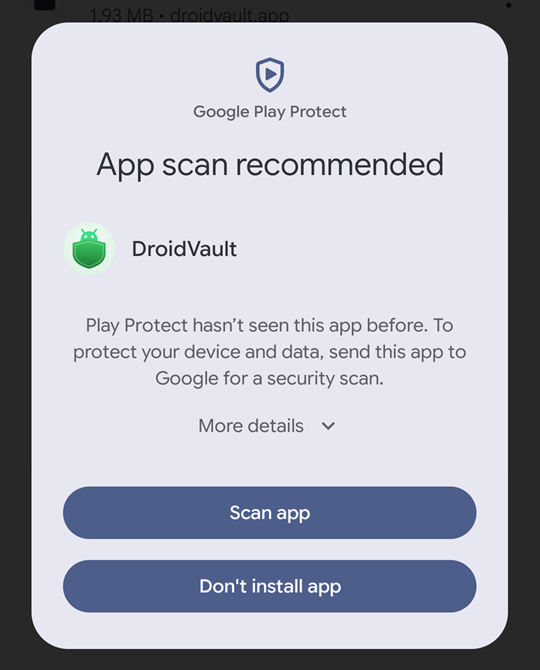
Play Protect’s warning as it first appears. Tap More details. 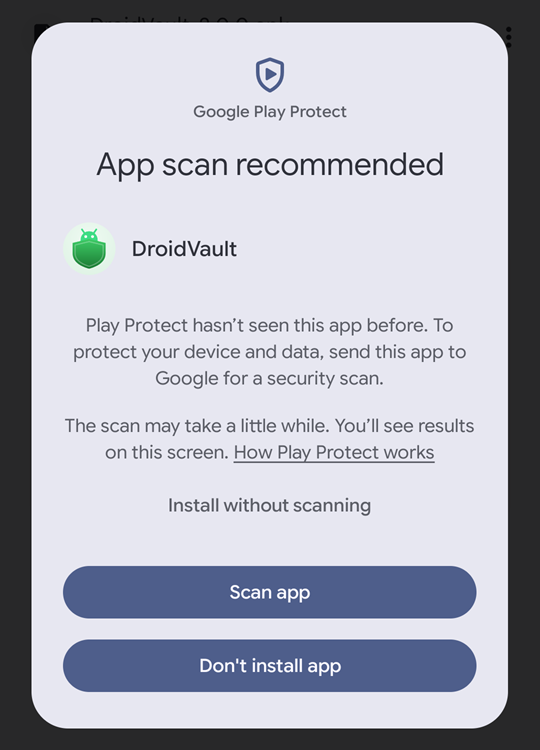
After More details: tap Install without scanning. Only do this for the file you downloaded from droidvault.app. The same warning can appear again when DroidVault installs an update; choose the same option.
Seeing a different message, or not sure what to tap? Email us with its exact words before you continue.
-
Allow texts and call log Android 15 and newer; some earlier phones
Open DroidVault. Its first screen, Let’s set up your backup, lists what it will ask for; tap Continue and allow the permissions it asks for: texts, call log, contacts, calendar, and photos & videos. On Android 15 and newer, and on some earlier phones, Android turns down texts and call log on its own at first, because DroidVault didn’t come from an app store.
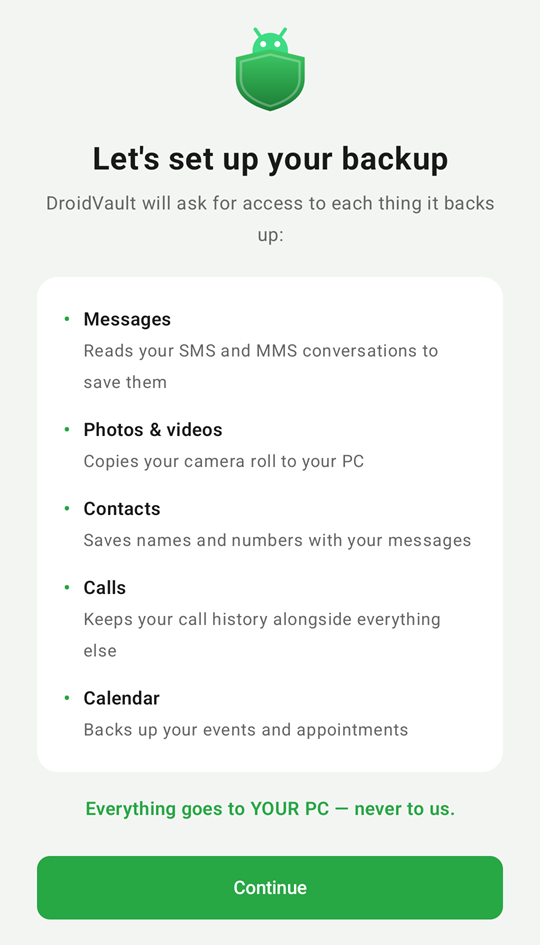
DroidVault’s first screen. Tap Continue. What you may see“App was denied access to SMS”
“The app requested access to a sensitive permission which can put your personal and financial info at risk. It’s possible the app won’t work properly without this restricted permission.”
“Some permissions were denied”
Or a “Restricted setting” message. Whichever you see, tap Close (or OK) and carry on below.
To fix it:
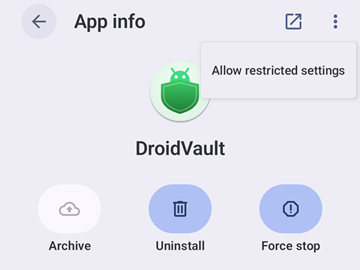
- Open your phone’s Settings › Apps and choose DroidVault to open its App info page. (Or press and hold the DroidVault icon and tap App info.)
- Tap the three-dot menu in the top-right corner.
- Tap Allow restricted settings and confirm with your fingerprint or PIN.
- Still on App info, tap Permissions, then SMS, and choose Allow.
- Go back, tap Call log, and choose Allow.
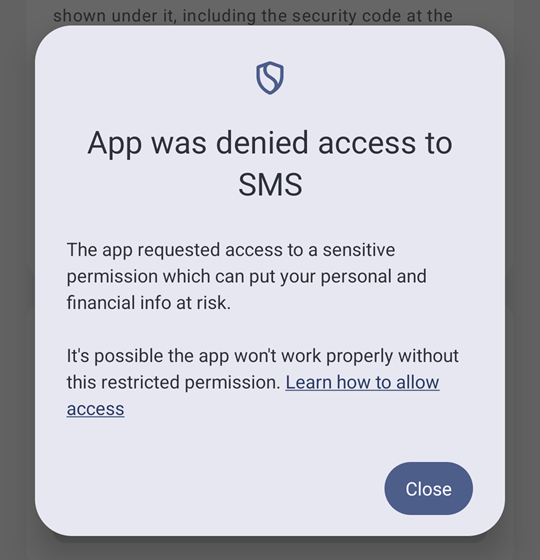
Android turns texts down the first time. Tap Close, then follow the steps above. 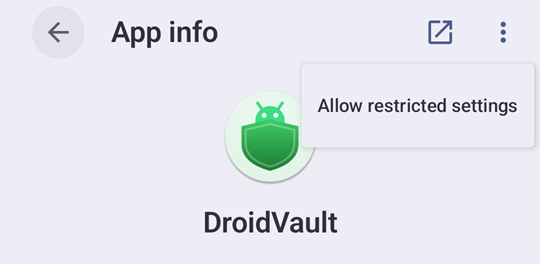
App info › three-dot menu › Allow restricted settings. The Allow restricted settings option only appears after Android has turned down a permission once, so try allowing it in DroidVault first. Android adds this extra step for apps installed from outside an app store that ask to read texts or call history. Android 8 through 12 don’t have it.
Texts permission is needed for a backup to run. The others are optional: DroidVault skips anything you don’t allow.
-
Let DroidVault run in the background
DroidVault runs in the background only when a scheduled backup is due. Phone battery savers can quietly put apps to sleep and stop those backups, so tell your phone to leave DroidVault alone. Big photo and video backups do use more battery, which is why scheduled backups wait until your battery isn’t low.
Google Pixel and most phones:
- Open Settings › Apps and choose DroidVault.
- Tap App battery usage (called Battery on some phones).
- Choose Unrestricted.
Samsung phones have one more setting:
- Open Settings › Apps › DroidVault › Battery and choose Unrestricted.
- Open Settings › Battery › Background usage limits. Make sure DroidVault isn’t listed under Sleeping apps or Deep sleeping apps, and add it to Never sleeping apps.
Stop Android from archiving DroidVault. A backup app runs on its own, so you may not open it for months. When that happens, Android can remove DroidVault’s permissions and archive it, and your backups stop without warning. To prevent it:
- Open Settings › Apps and choose DroidVault.
- Turn off Manage app if unused. On some phones it’s called Pause app activity if unused or Remove permissions if app is unused.
Other brands have similar settings, usually under Battery or Background activity. If scheduled backups stop running, check these settings first.
-
Pair with your PC
On your PC, open DroidVault for Windows and go to Connect a phone. It shows a QR code, with a pairing code and a security code under it.
- Open your phone’s camera app and point it at the QR code on your PC screen.
- Tap the link that appears. DroidVault opens a Back up to this PC? screen that shows the PC’s security code.
- Check that the security code on your phone matches the one on your PC, then tap Back up to this PC. If the codes don’t match, tap Cancel.
- Can’t scan? Type the pairing code shown under the QR code, including the security code at the end, into the DroidVault app instead.
If Windows asks whether to allow DroidVault on your network, choose Allow access for private networks.
That’s it. Your first backup starts, and you can set a schedule on the phone if you like.
Why all the warnings?
Android and Chrome can’t vouch for apps that come from a website instead of an app store, so they ask you to confirm each step. The download warning and the unknown-apps setting can appear for any app installed this way, Google Play Protect can warn about any app it hasn’t seen before, and the restricted-settings step appears for apps installed this way that read texts or call history, not just DroidVault.
Why not Google Play? Google Play strictly limits which apps may read text messages and call history. Texts and calls are the heart of a phone backup, so we distribute the phone app ourselves, from droidvault.app.
What you can count on
- Signed by Gigadyne LLC. Every copy of the DroidVault app carries Gigadyne LLC’s digital signature. Android will only install an update to DroidVault if it has the same signature, so no one else can swap your copy for theirs.
- Only from droidvault.app. Download DroidVault only from this website. If someone sends you a DroidVault file any other way, don’t install it.
- It only talks to your PC, plus a once-a-day check for app updates on droidvault.app. Your backup goes only to the PC you paired with, encrypted, over your own network. The update check sends only the app’s version number. Details are in the privacy policy.
Check your download (optional)
If you’d like to confirm that the file you downloaded is exactly the one we published, compare it with these fingerprints.
- SHA-256 of the app file (APK), version 2.0.0
373db3ce75aa9d5fd75be873ab0814339bf014b9841056ac3f5d961001fad977- SHA-256 of Gigadyne LLC’s signing certificate
95c9a7357fdaa5a98b58c52ac67d9bd6bb4ec1430df023bd39c7fcb6e848975e- Package name
co.gigadyne.droidvault.full
The same certificate fingerprint is shown in DroidVault for Windows, under Set up your phone › Check the download. If the two ever differ, don’t install the file; email [email protected].
On a Windows PC, this command prints the file’s SHA-256 (use the name of the file you downloaded):
certutil -hashfile DroidVault-2.0.0.apk SHA256
To check the signing certificate, run apksigner from the Android SDK build tools and compare the “certificate SHA-256 digest” line:
apksigner verify --print-certs DroidVault-2.0.0.apk
The file fingerprint changes with every new version of the app. The signing certificate fingerprint stays the same.
Updating the app later
DroidVault checks droidvault.app for a newer version at most once a day, and you can tap Settings › Check for updates in the app at any time. When an update is ready, tap Update. The first time, Android asks you to let DroidVault install apps: turn on Allow from this source, then go back. Android then shows the update and you tap Update. Google Play Protect may show the same warning as when you first installed DroidVault; choose the option that installs, as in step 5. Your settings and pairing stay in place, and Android only accepts the update if it carries the same Gigadyne LLC signature. On a Samsung phone, turn Auto Blocker off briefly first (step 1).
You can also download the newest version in step 2 and install it over your copy, for example if an update can’t be installed from inside the app.
Stuck on a step?
Email [email protected] with your phone model, your Android version, and the exact wording of the message you see. You can also check the support page for common fixes.